IMPORTANT: CONSTRUCTION NOTICE For your safety, no customers will be permitted on our grounds until further notice.
Bills can be paid online through SmartHub by clicking here or in person at any Friendship State Bank Location. You may also call 1-844-980-3042 to pay with a credit card or set up automatic payments, so you know you’re covered every month!
Please call our office at 888-200-8077 for all other inquiries. We are sorry for any inconvenience this may cause.
Select Page
MacOS Mail
SEI Communications, Inc – A Total Internet and Communications Company
How to setup MacOS Mail Client for SEI Email access
Initial Setup
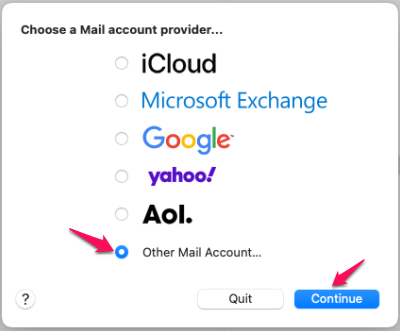
1) Type ‘Mail’ in the search menu, click mail to open the mail client.
2) Select ‘Other Mail Account’ and click Continue.
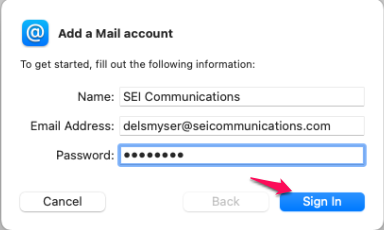
3) Enter an identifier for the mail recipients (usually your name), your SEI e-mail address, and password.
*PLEASE USE @seidata.com NOT @seicommunications.com
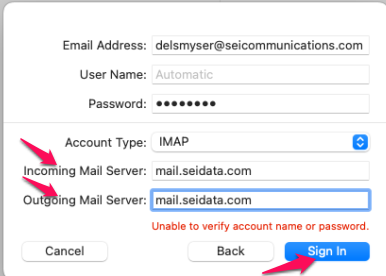
4) At the next screen enter the Incoming and Outgoing server information which is “mail.seidata.com” and click ‘Sign In’.
*PLEASE USE @seidata.com NOT @seicommunications.com
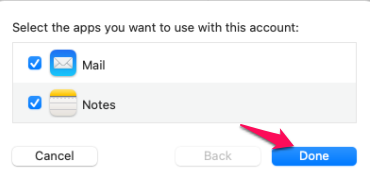
5) Click ‘Done’.
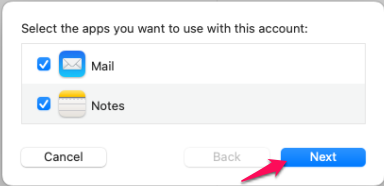
6) Click ‘Next’.
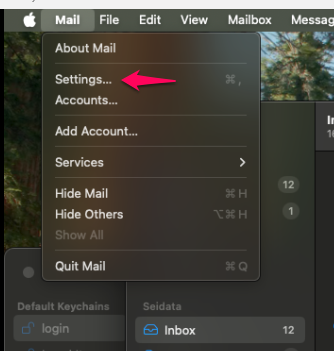
7) Open Mail app and within the Mail menu click Settings
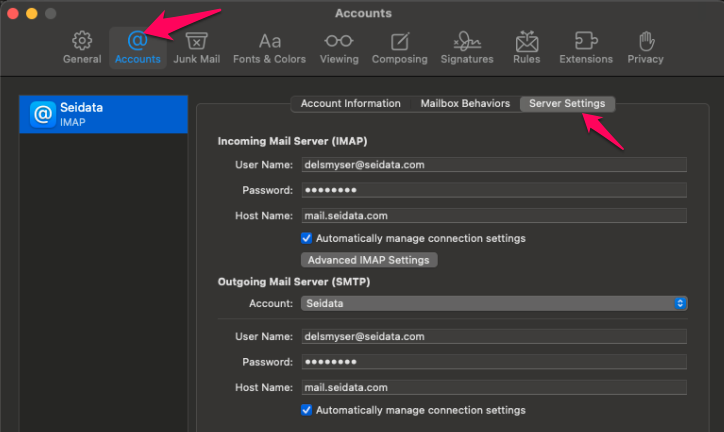
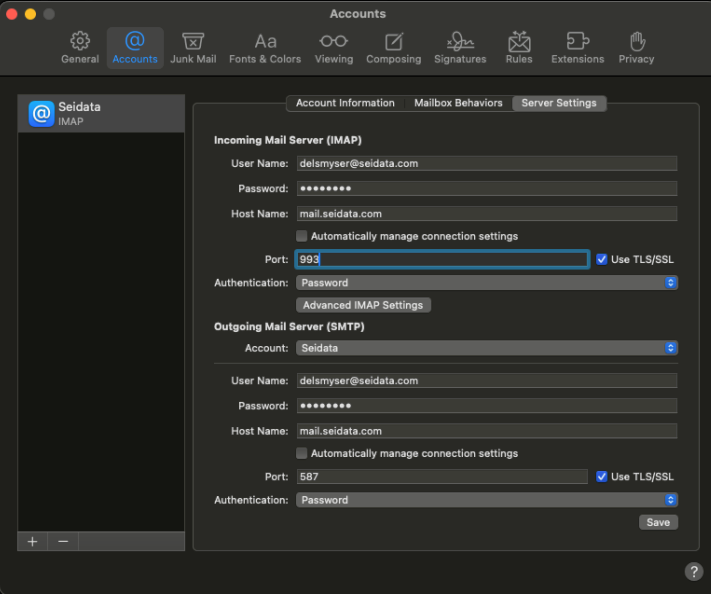
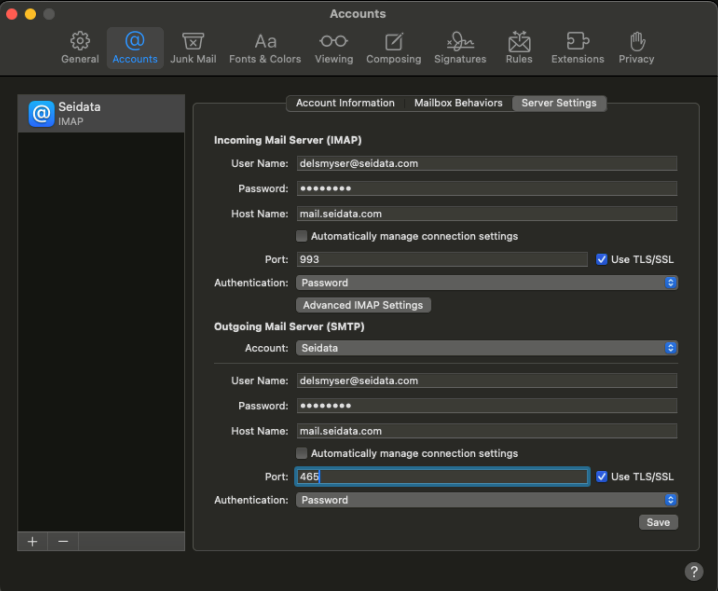
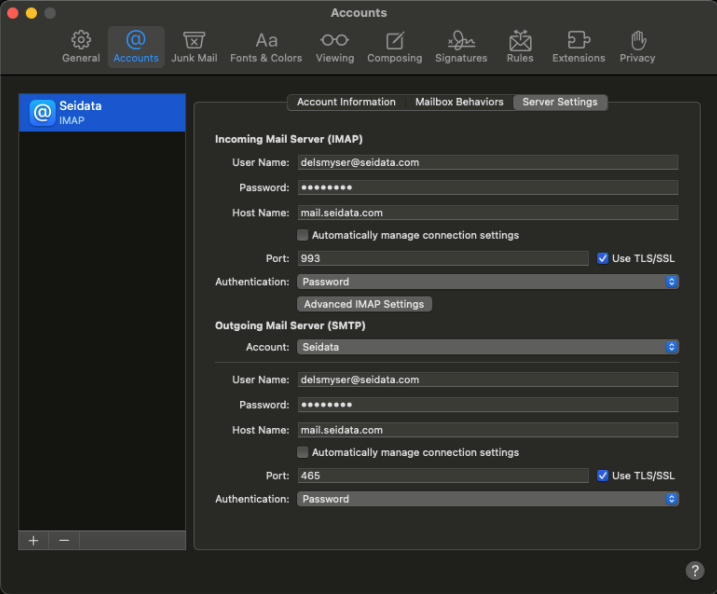
8) Click the Accounts tab, Server Settings.
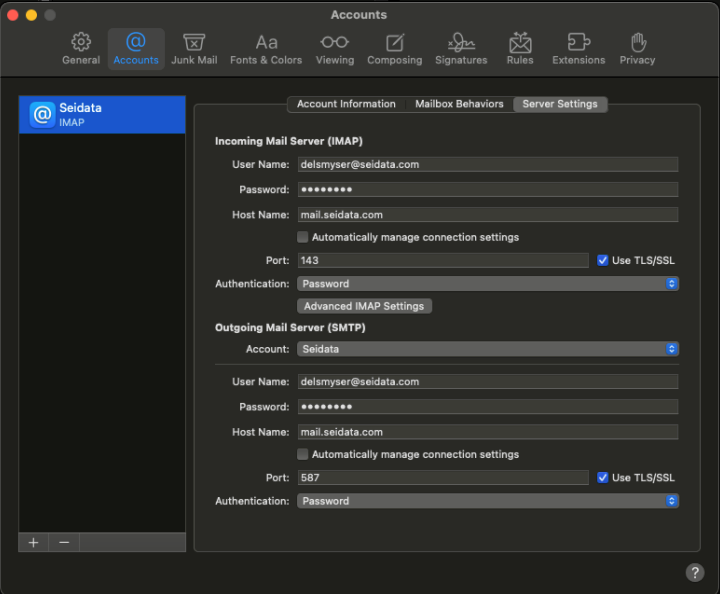
9) Uncheck the Automatically Managed Connect Settings to edit the ports and Authentication
10) Change Incoming Mail Server (IMAP) port to 993
11) Change Outgoing Mail Server (SMTP) port to 465
12) Save setting changes
Internet Tech Support
Available 24×7 800-925-6746 | 812-574-8800 | 812-667-8800
812-744-8800 | 812-839-8800 | 812-873-8800
Cellular Technical Support Monday through Friday ~ 8:00am to 4:30pm
888-200-8077