IMPORTANT: CONSTRUCTION NOTICE For your safety, no customers will be permitted on our grounds until further notice.
Bills can be paid online through SmartHub by clicking here or in person at any Friendship State Bank Location. You may also call 1-844-980-3042 to pay with a credit card or set up automatic payments, so you know you’re covered every month!
Please call our office at 888-200-8077 for all other inquiries. We are sorry for any inconvenience this may cause.
Select Page
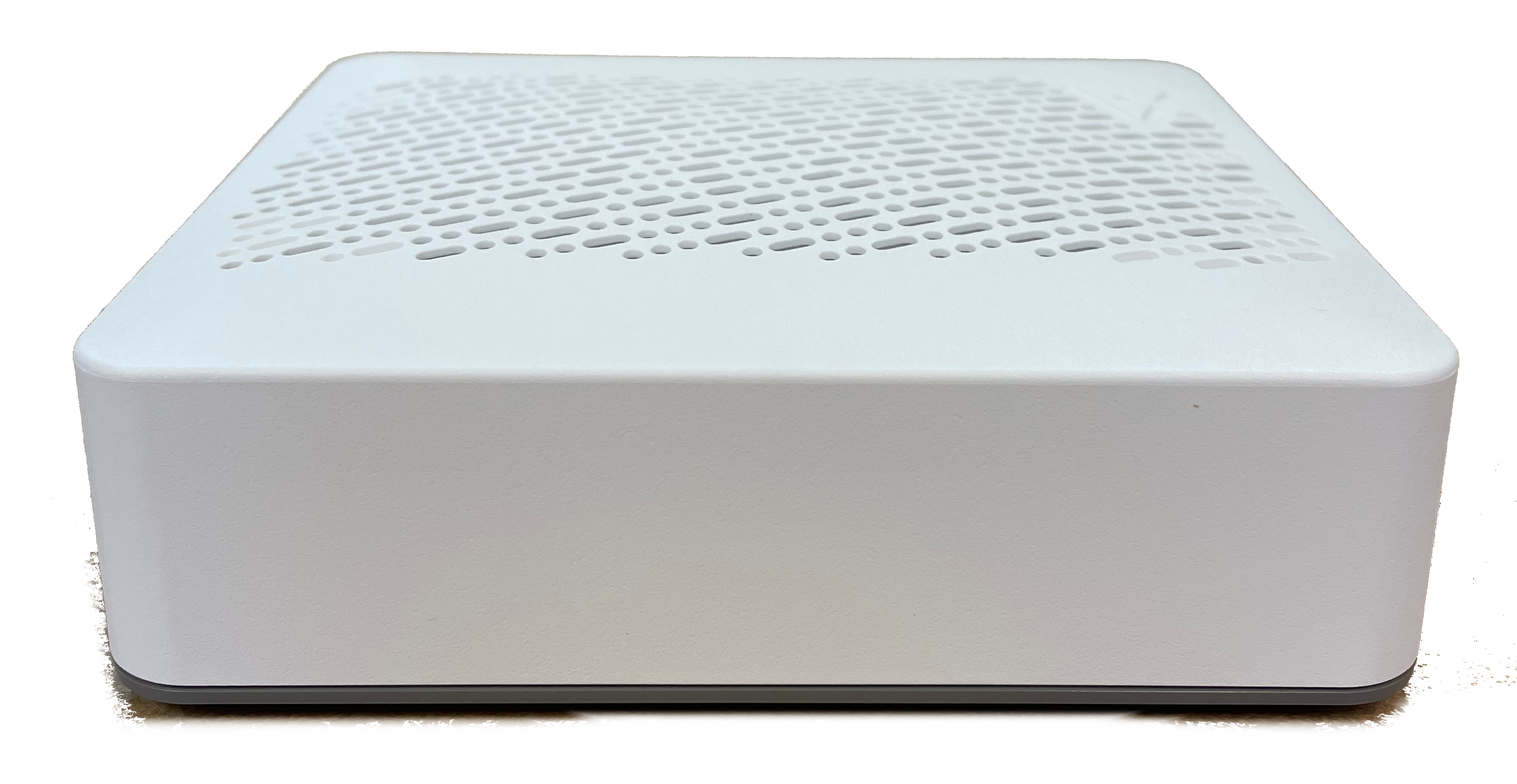
Adtran SDG-8610 Mesh Setup
SEI Communications, Inc – A Total Internet and Communications Company
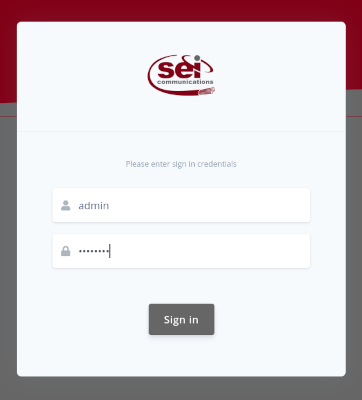
1) From a web browser, go to “http://192.168.1.1”. Login with the username “admin” and the password “seiadmin”.
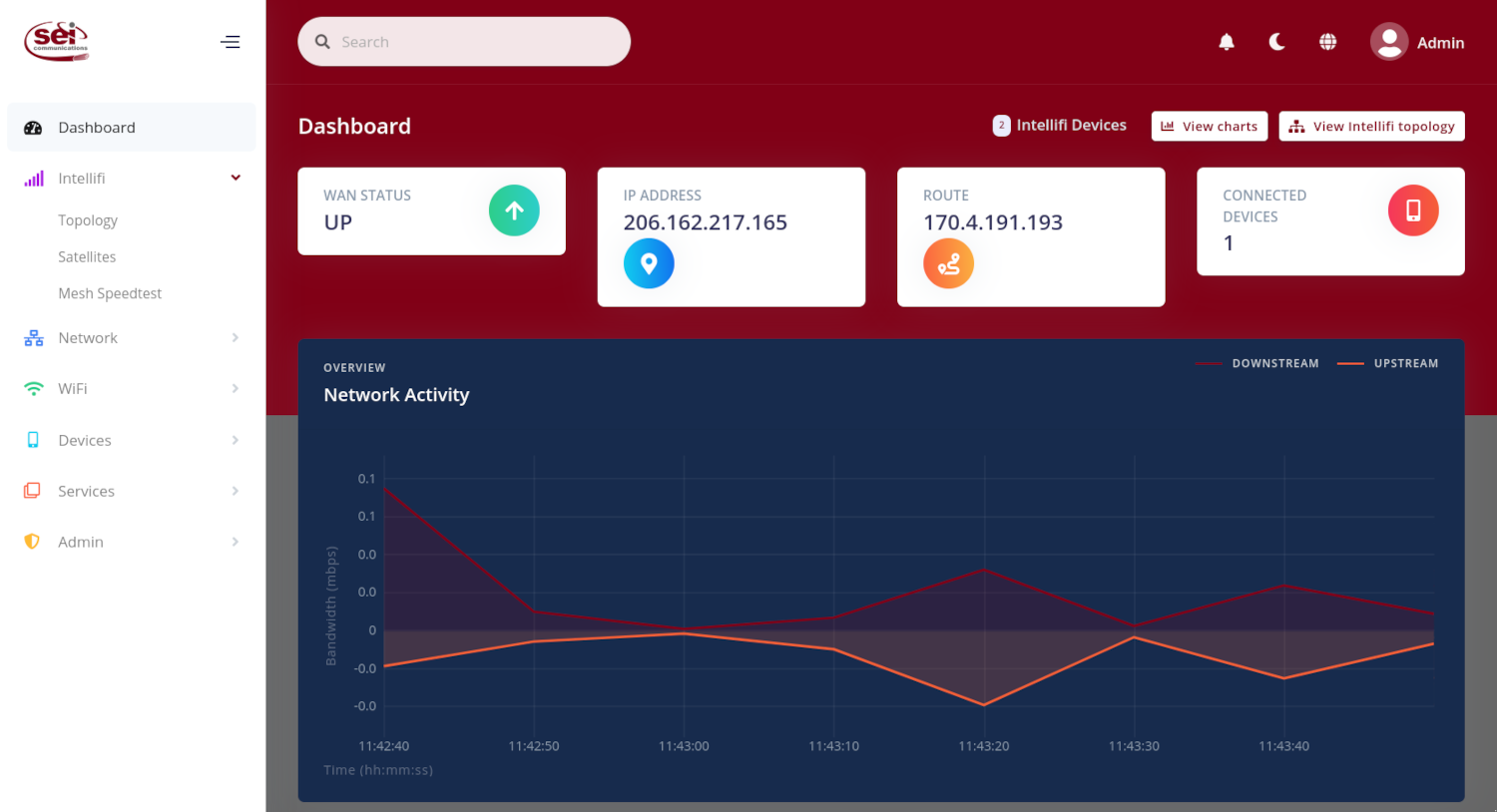
2) Once your dashboard appears, go to the left hand navigation and select ‘Intellifi’.
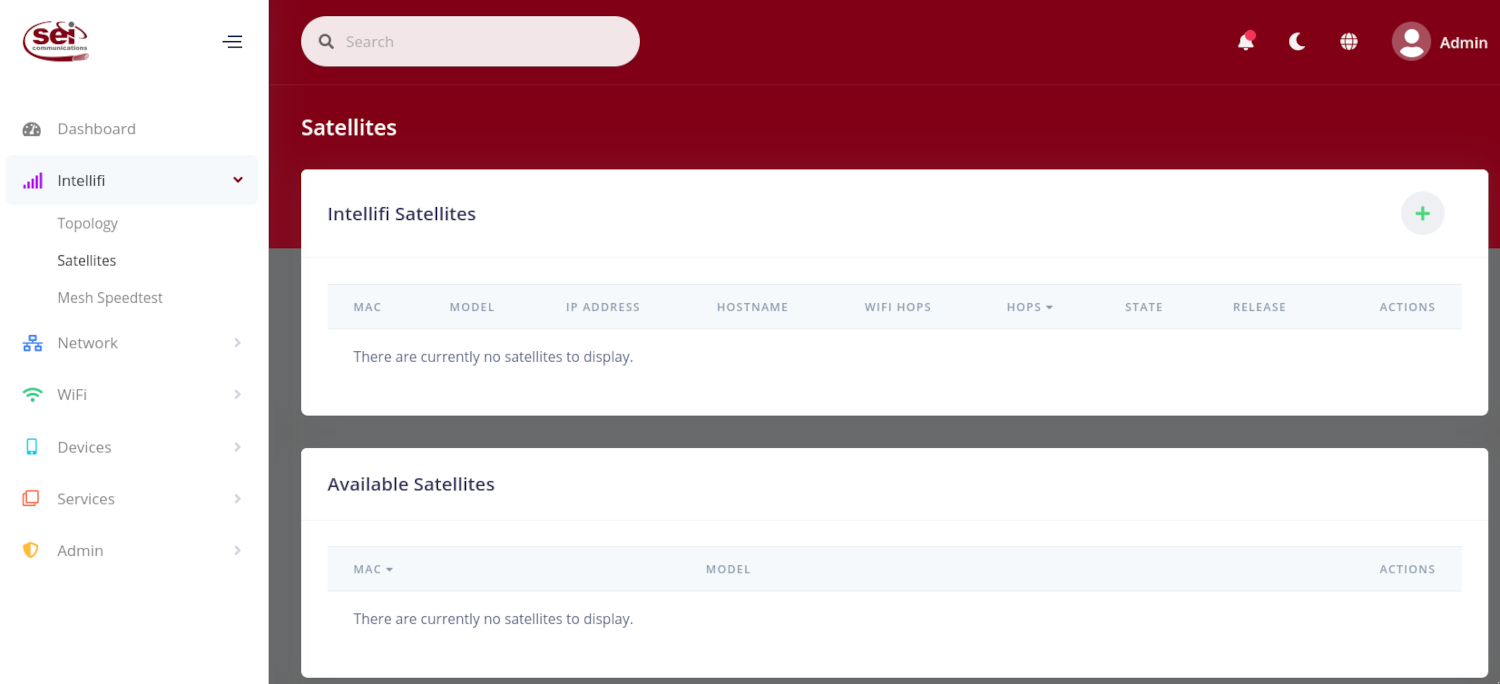
3) Under ‘Intellifi’, select ‘Satellites’.
– If the mesh device(s) is not powered on, there will be no available satellite devices.
4) Power on the mesh device(s).
– When the mesh powers on, the light on the device will first flash green, which indicates that the Linux OS is booting on.
– After the mesh is done booting on, it will then start blinking a light blue color, which indicates the mesh is searching or attempting to pair to an Adtran router.
– There are two ways to connect the mesh to the Adtran router:
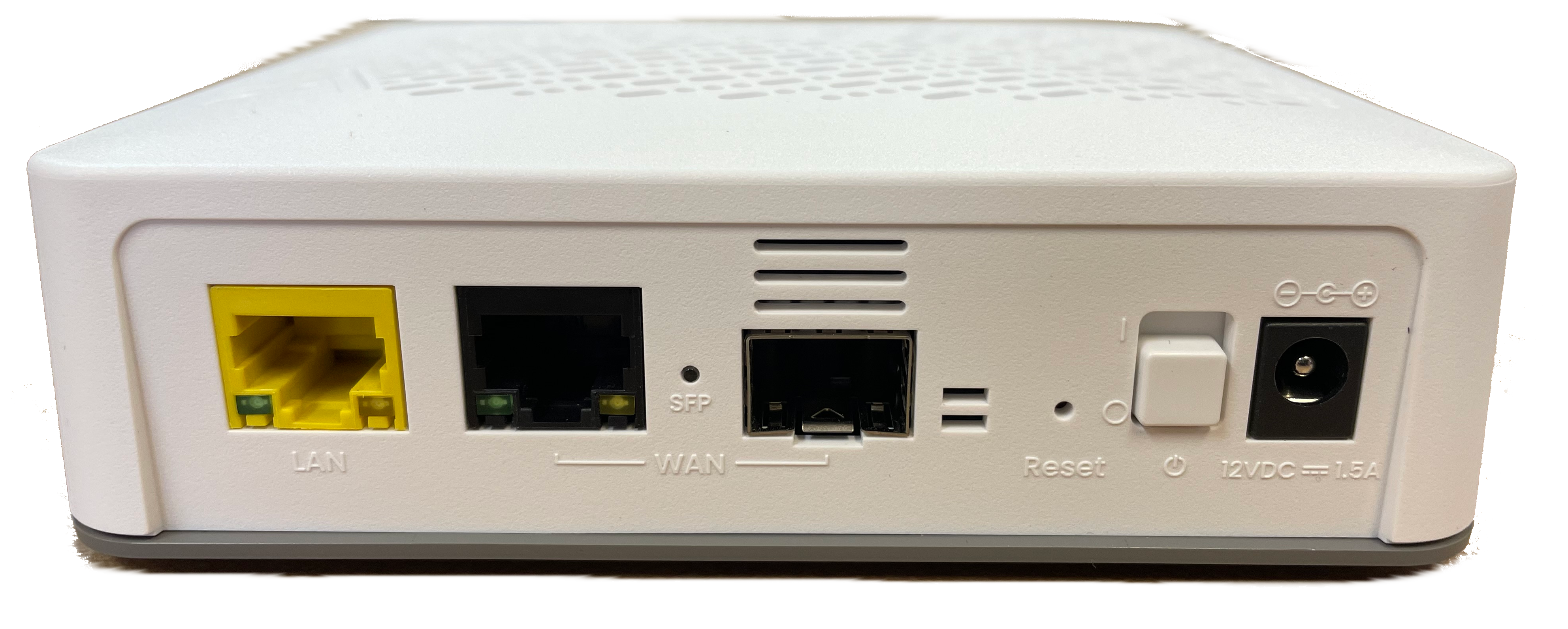
– Hardwired: use an extra Ethernet cord to connect the WAN or LAN port on the mesh to the LAN port on the Adtran router
– Wireless: simply power on the mesh device
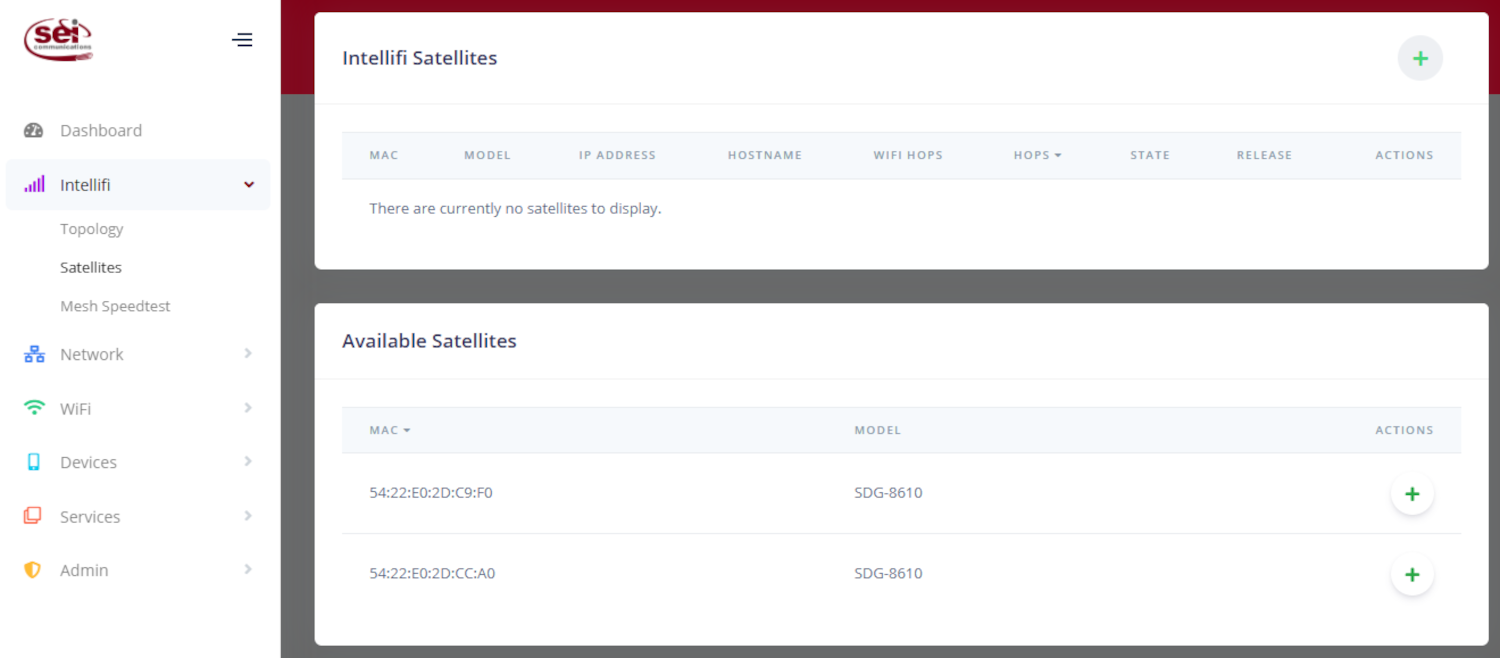
– After the mesh device(s) is hardwired or connected wirelessly, it should appear under Available Satellites.
– Under the “Actions” column, select the green ‘+’ icon by the device(s) you would like to register.
5) After clicking the ‘+’ icon, the mesh device(s) should now appear under ‘Intellifi Satellites’.
– The mesh light will start blinking red, which indicates that the firmware is upgrading\booting.
– When the mesh is successfully paired to the Adtran router, the light will change to a white color, which indicates that the device has successfully paired to the router and has a strong signal.
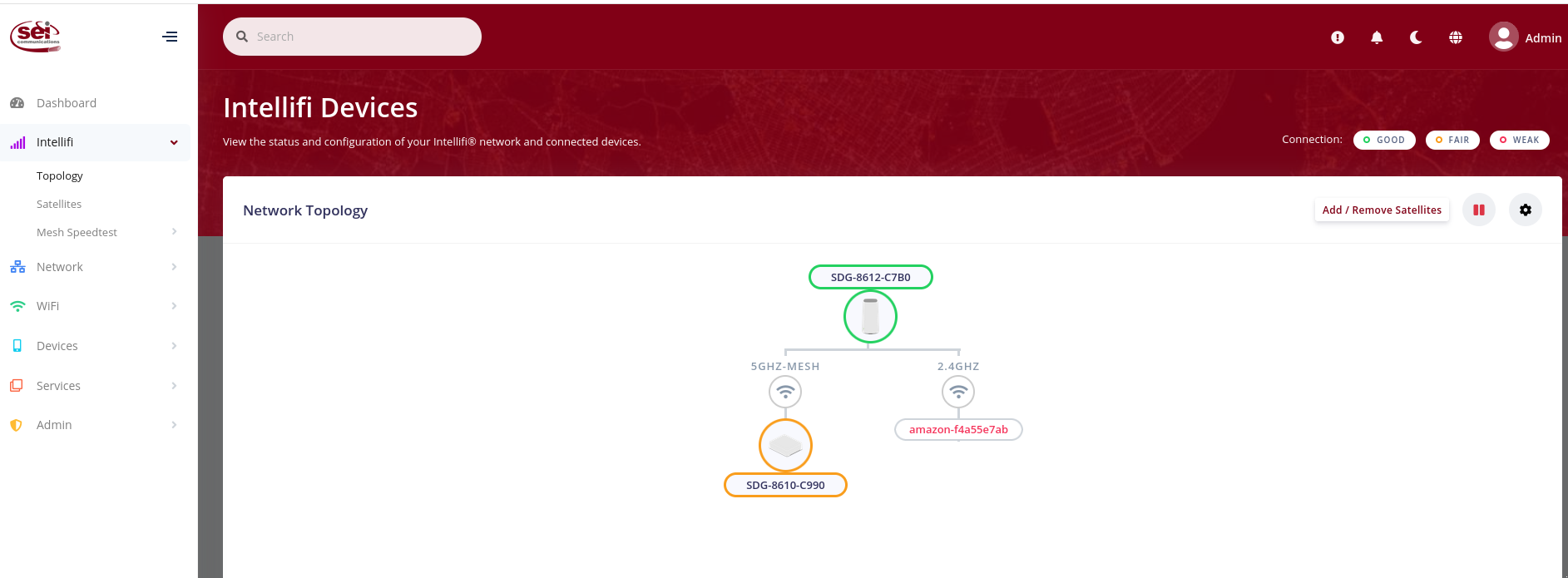
– If the light on the mesh is amber/orange, this indicates the device’s connection to the Adtran router is weak. You may need to move the mesh closer to the router or to a more open space if your signal is not strong enough. You can also use the “Typology” page under the “Intellifi” drop down to see how strong the signal is to your mesh. A green circle around the mesh device means there is a strong signal, and an amber circle around the device means there is a weak signal.
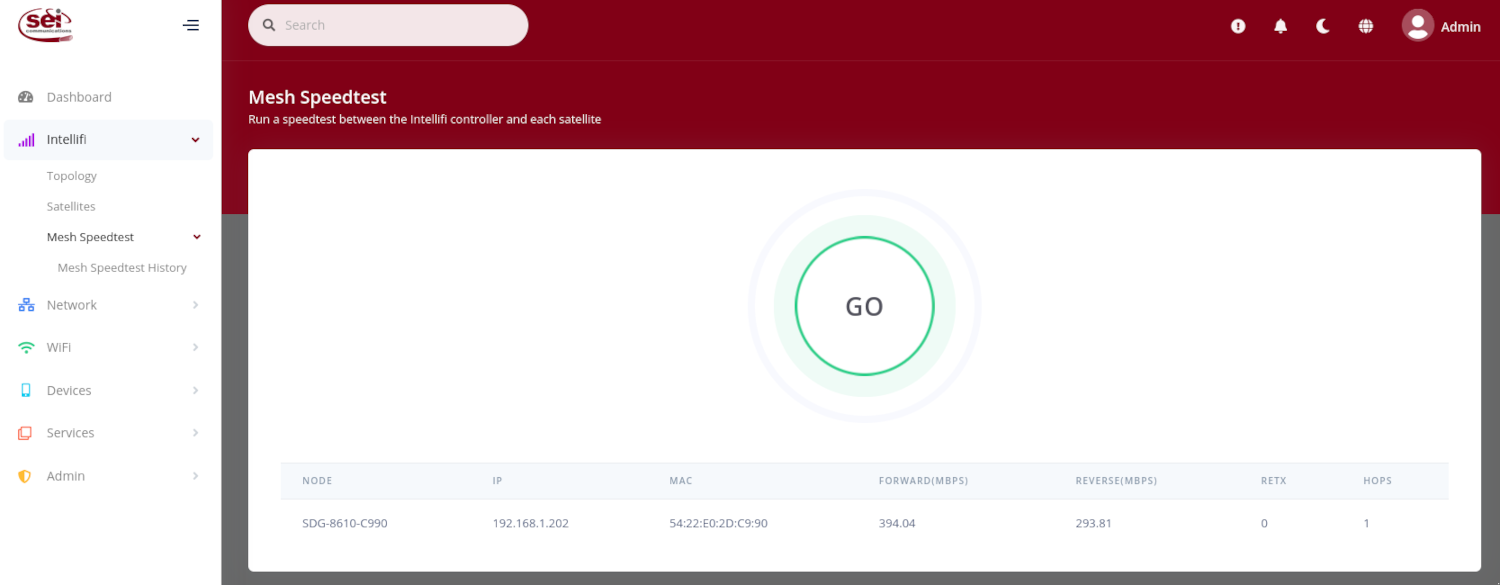
6) Once the mesh device is successfully connected to the Adtran router, a speed test can be run for the mesh device.
– Under ‘Intellifi’ in the left hand navigation, select ‘Mesh Speedtest’. From there, a speed test can be ran for all mesh devices.
7) You are now done. The mesh device(s) has been successfully added to your Adtran router, extending and strengthening your home’s WiFi signals.